About the FAQ System
The Vale FAQ System allows undergraduate MBChB students to submit course content related
questions to course admin staff and teachers.
Students can submit questions in the Vale Student Portal FAQ section:
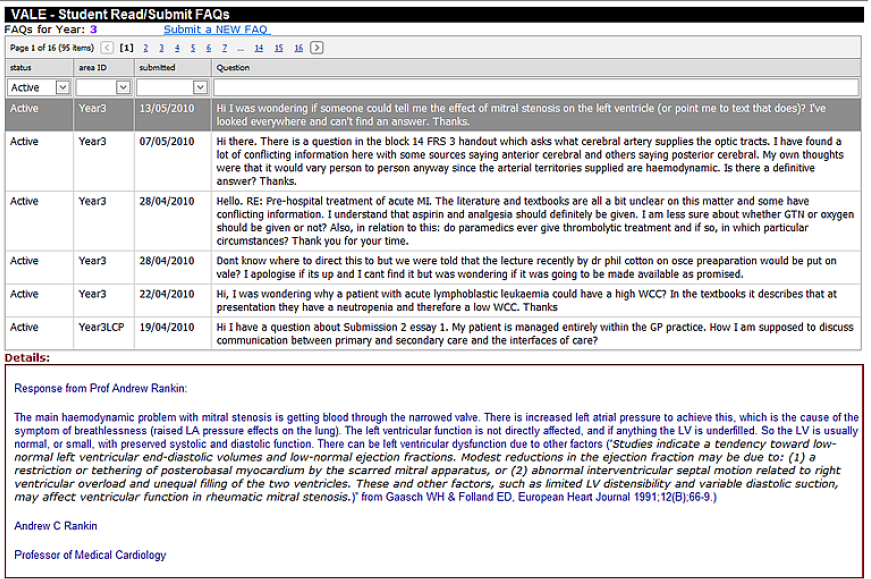
Students can click on the question and the answer will display in the "Details" panel at
the bottom of the page. Students can page through questions (or search for key words
like "stroke") by using the Question filter box. They can also see "pending questions"
(i.e. questions that have not been answered yet) by selecting "pending" from the
"Status" dropdown list at the top left corner of the table.
When students "Submit a new FAQ" using the link at the top of the page, the
information is emailed directly to the person(s) responsible for the selected FAQ area.
Login
To login into the system, you'll need a username and password. If you do not have a username
and password,
the FAQ Administrator
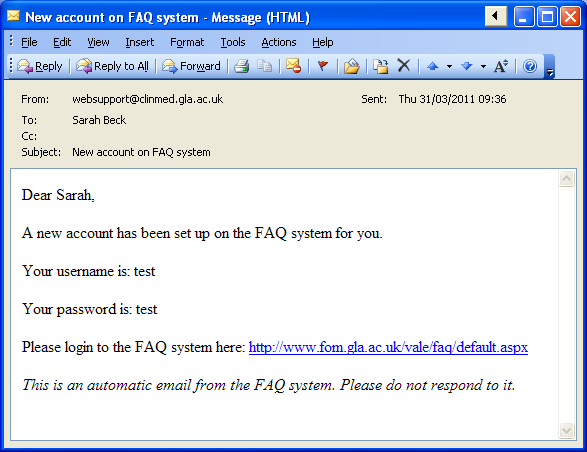
can set one up for you and you will automatically be sent an email with your login
details.
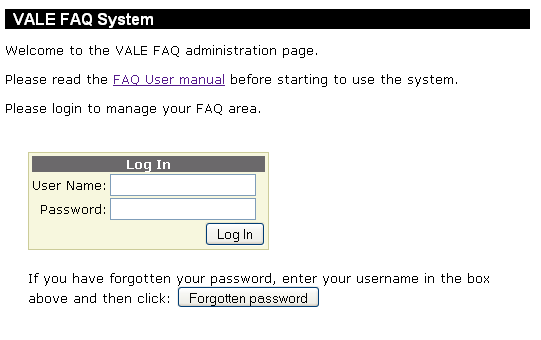
If you have forgotten your password, type in your username and then click "Forgotten
password". Your password will be emailed to you. If you have forgotten your username then please
contact the FAQ Administrator.
Home page
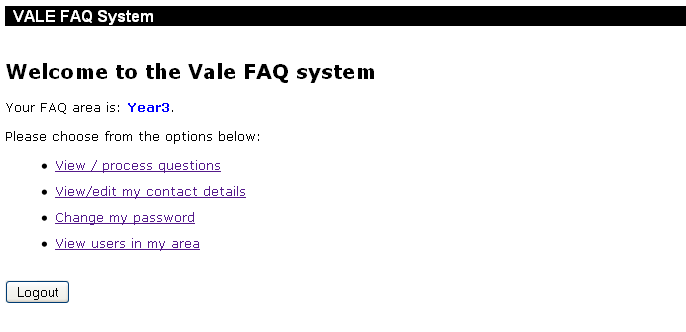
When you log in, you'll be taken to the home page where you can choose from the pages available to you.
When you are finished using the system, please return to the home page and click the "Logout" button.
View / process questions
This is where you can view and process the questions.
Colour coded buttons indicate the status of any FAQs:

|
Pending: indicates that a new FAQ has arrived and is awaiting processing.
|

|
Forwarded: indicates that you have forwarded an FAQ to another colleague but are still awaiting an answer.
|

|
Active: this question has been answered.
|
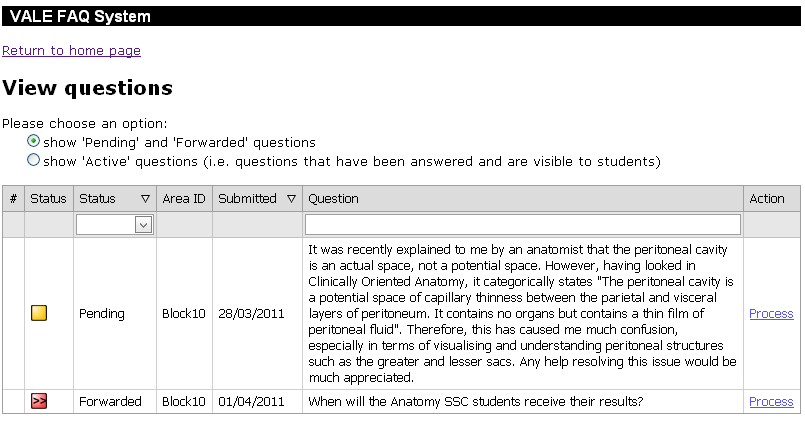
On this page, you can choose between two different views:
-
the 'Pending' and 'Forwarded' view lets you see the questions that need to be processed (this is the default view)
-
the 'Active' view let you see all the questions that have previously been answered and are visible to the students.
You do not need to process the active questions unless you need to change an answer.
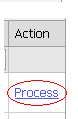
To process an FAQ, simply click on the "Process" link to the right of the question:
This will take you to the Questions Processing page, as follows:
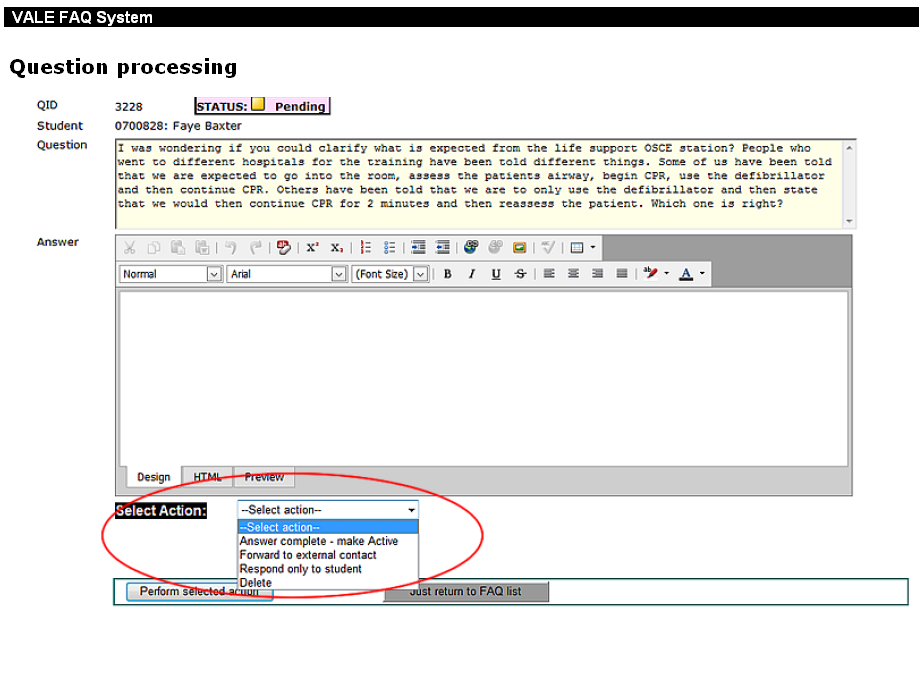
Type the answer in the Answer box and select one of the following actions from the dropdown list (see red circle above):
-
“Answer complete – make Active”: post the answer and make it visible to students
-
“Forward to an external contact: forward the question to a colleague
-
“Respond only to student”: the student will be sent an email with the answer but
the question will no longer be visible to students on the Vale FAQ webpage
-
“Delete”: the question will be deleted and will no longer be visible to students
on the Vale FAQ webpage
If you choose to forward the question, additonal text boxes will appear for you to enter
the email address and a personal message:
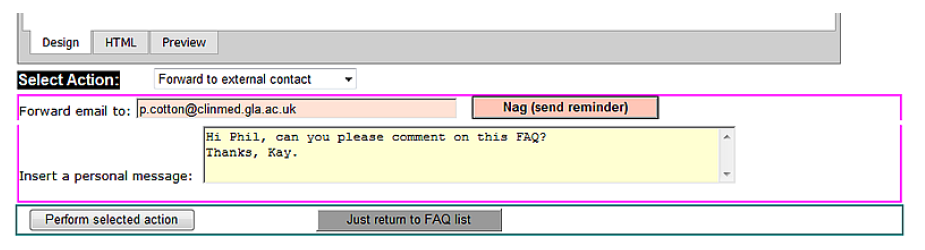
Complete the information appropriately as shown in the above box. If you have already forwarded
the question and the email entry exists, simply click “Nag (send reminder)”. This will resend
the question and your message to the respondent again.
To complete all actions click on the "Perform selected action" button.
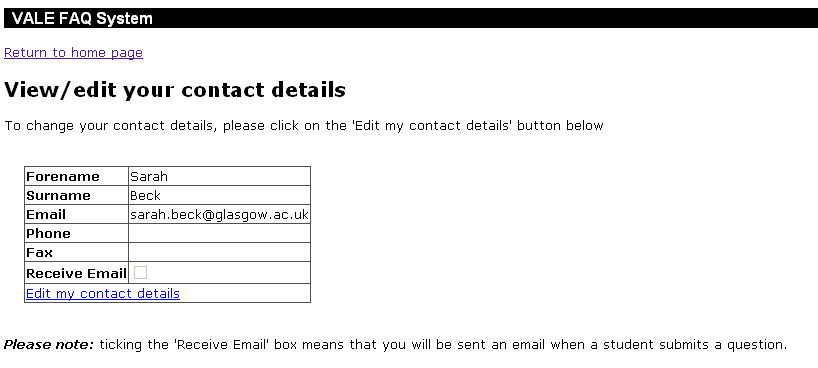
View / edit my contact details
This page lets you view your contact details.
If the "Receive Email" tick box is ticked this means that you will automatically receive an
email when a student submits a question.
If you need to make any changes, press the "Edit my contact details" button.
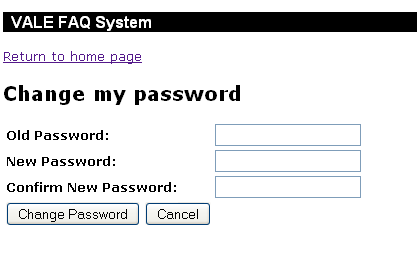
Change my password
To change your password, type your old password into the "Old Password" box then type your
new password into the "New Password" and "Confirm New Password" boxes, then click the "Change Password" button.
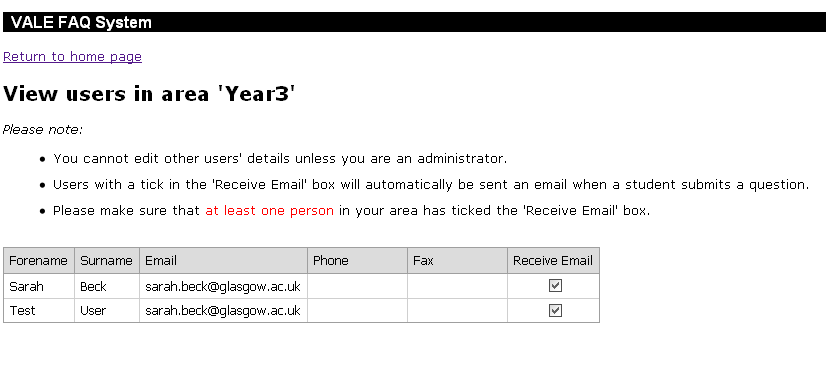
View users in my area
You can view the contact details of all the users in your area.
This also lets you check which users in your area
are set up to receive emails when a student submits a question.
Note that it is important that at least one user in your area has ticked the
"Receive Email" box. You cannot edit other users' contact details, they will need to
log in and edit their own contact details or you can ask the
FAQ Administrator to do it.
Manage areas and users
This page is only available to users who have adminstrator accounts.
You can view the FAQ areas that are currently set up and edit or delete existing areas
by clicking on the "Edit" and "Delete" buttons on the left hand side of the table. You can also
add a new area by clicking on the "Add new FAQ area" button at the bottom of the table.
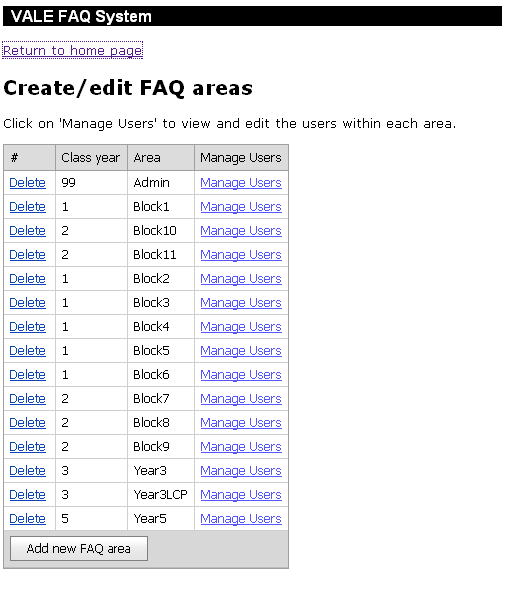
To view or edit the users in an area, click on "Manage Users" at the right hand side of the table.
This will take you to the Manage Users page:
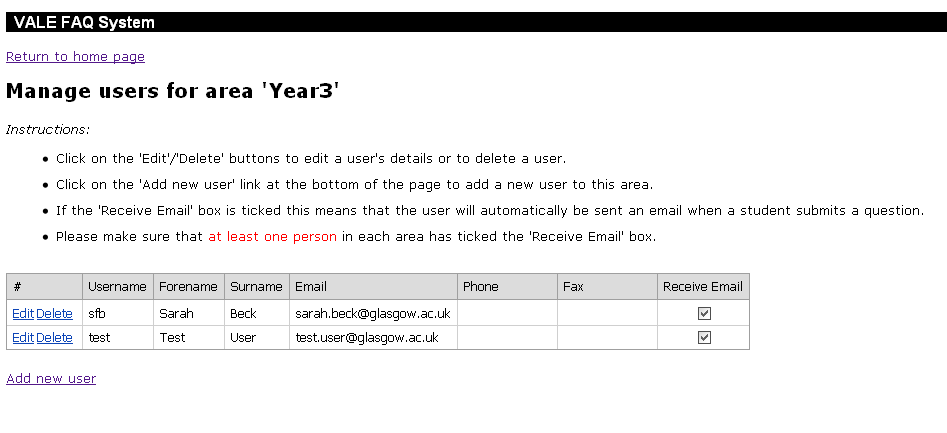
You can Edit or Delete a user by clicking on the "Edit" or "Delete" buttons on the left hand
side of the table.
If the "Receive Email" box is ticked then the user will automatically receive
an email when a student submits a question for that area.
It is important to make sure that at least one user in each area has ticked the "Receive Email" box.
To add a new user, click on "Add new user" at the bottom of the table
and this will take you to the Add User page:
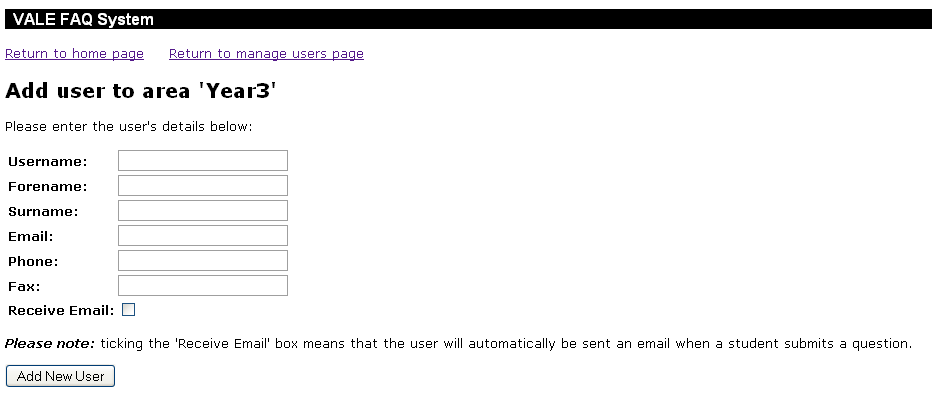
Enter the user's details and click on the "Add New User" button to add the user.
The new user will automatically be sent an email informing them of their username and password: